
Manual / Personalising the app
Your operators and your depot
- For
- a controller who works one operator's routes, or one depot
- Status
- current
- Covers
- the Operator filter and its pin button, My operators in ⚙ Settings → Startup, and My depot in Operations
- Last checked against the app
6f7727e(2026-08-19)
Most people here work a slice of the network rather than all of it. Two settings narrow the app to yours, and this page is what each one reaches and what it deliberately does not.
Your operators
Where the control is. In the Map Explorer's sidebar, under Routes, the Operator filter. Its collapsed summary shows what you have chosen — All operators when nothing is ticked, the name itself when one is, and 3 operators when there are more. Open it for a checkbox per operator, with All and Clear buttons above them, and a pin button at the foot.
Routes whose operator the app does not know are listed as Unknown / charter, which is a real choice in the list rather than a gap.
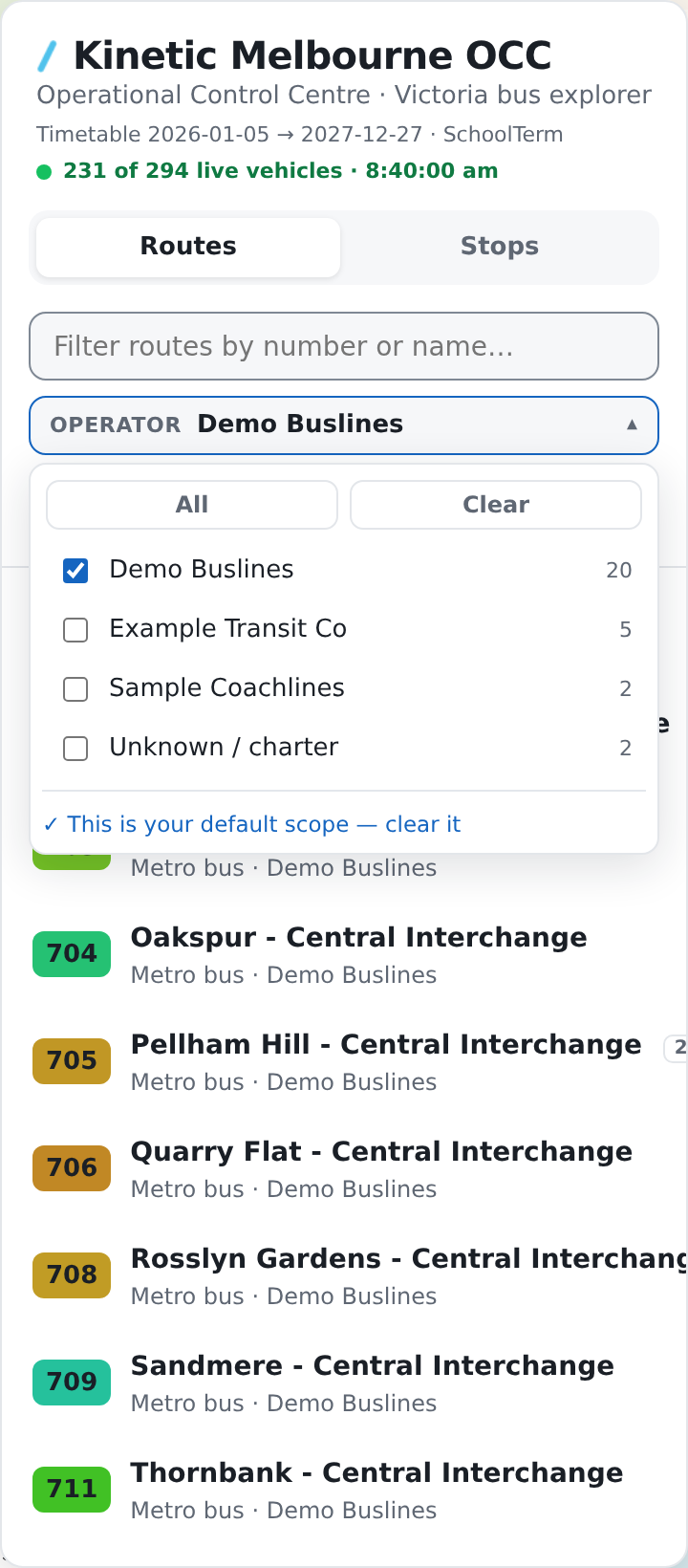
One scope, three tabs. Whatever you set here is also the scope the Timetable and the Diversions register start in. It is one answer to "my routes", not three — before it was shared, the same person saw a different scope depending on which tab they opened first.
Making it your default. The pin button at the foot of the Operator menu is the bridge between this session and every future one. It reads:
| It says | What pressing it does |
|---|---|
| Make this my default scope | Stores what you have ticked as your default |
| ✓ This is your default scope — clear it | You are already on your default. Pressing it clears the default |
| Clear my default scope | Shown when nothing is ticked. Stores "no default scope" — see below |
Hovering it says where it is being kept: "Saved to your account, so it follows you to any browser", or "Saved in this browser (sign in to carry it across browsers)". A short message confirms each press.
The same value is in the panel. ⚙ Settings → Startup → My operators holds the same list, as names separated by commas. The filter is the comfortable way to set it; the panel is where you can see that it is set.
Why a fresh browser already has a scope
A user who has never chosen gets the operators this deployment is for, ticked in the filter, on their first visit. On a Kinetic control room's deployment that is Kinetic Melbourne — the bus operator, sitting in the same list as CDC Melbourne and Ventura.
It is seeded as a real, visible, editable preference and not as an invisible rule. It shows up ticked in the menu, it shows in the pin button, and clearing it sticks.
That is why "Clear my default scope" stores an empty answer rather than resetting the setting. "I want no default scope" has to outrank the seed, and only a stored answer can do that — resetting would remove your answer and let the seed apply again the next time you opened the app. It is the one deliberate exception to the rule on What Reset actually does.
Seeding happens once, and only on a cold start. Follow a link that says nothing about operators and the app leaves the filter alone, because the link is the sender's statement about what to look at and your defaults must not fill in its silences.
Your depot
⚙ Settings → Operations → My depot is a name you type. The Operations Analysis tab then opens with its Shifts (drivers) and Runs (buses) tables already filtered to that depot.
The section is only in the panel where this deployment has a roster loaded — no roster, no Operations section.
It is opening state, so it lands on the next reload, not on the tab you have open. That is unlike your operator scope, which moves the moment you change it.
The name is not checked as you type it, because the roster's list of depots is not loaded until the tab is opened. A name that matches nothing gives you an empty table you can clear from the tab, which is more honest than quietly ignoring a setting you can see is set.
What they do not mean
A scope is a filter, not a permission. Nothing is hidden from you by setting it, and nothing is unlocked by clearing it. Press Clear, or All, and the whole network is back.
A scope does not change any number. It changes which routes are listed and which buses are drawn. A count on screen counts what is in scope and says so — the live line reads N of M live vehicles when your filter is hiding the difference, so the total is never lost.
"All operators" is not "no filter applied to the live map". It is the absence of an operator filter specifically. A selected route, a switched-off layer or a zoom are separate, and they all still apply.
Your scope does not travel in a link. A link carries whatever operator scope the sender had at the time. That is deliberate: one link must show one map.
My depot does not follow a link either. It seeds the tab when you open it by clicking. Arrive on the Operations Analysis tab through a link and you get what the link says — including "every depot", when the link says nothing about one.
My depot is not a filter on anything else. The Map Explorer, the Timetable and the Diversions register know nothing about it.
Neither setting is confidential, and one of them touches something that is. The depot name you type is a setting of yours. What the Operations Analysis tab shows once it is applied is drawn from the confidential Kinetic Melbourne driver roster, and that does not leave your control room — including in a screenshot, and including in a link, which names the depot and can name a shift. See Who to tell.