
Manual / Personalising the app
The Settings panel
- For
- a controller
- Status
- current
- Covers
- the ⚙ Settings button and the dialog it opens
- Last checked against the app
6f7727e(2026-08-19)
Everything you can choose about how this app behaves is in one dialog. This page is where it is, how it is arranged, where your choices are kept, and what happens to them when you sign in.
What you are looking at
⚙ Settings is in the top bar, near the right-hand end, between the ◀ ▶ Recent ▾ group and your account block. At a narrow window the word disappears and the gear stays.
Press it and a dialog opens over whatever you were doing. Escape closes it, as does the × in its corner, and so does clicking the dark area around it. Nothing is lost by closing it — every change takes effect the moment you make it.
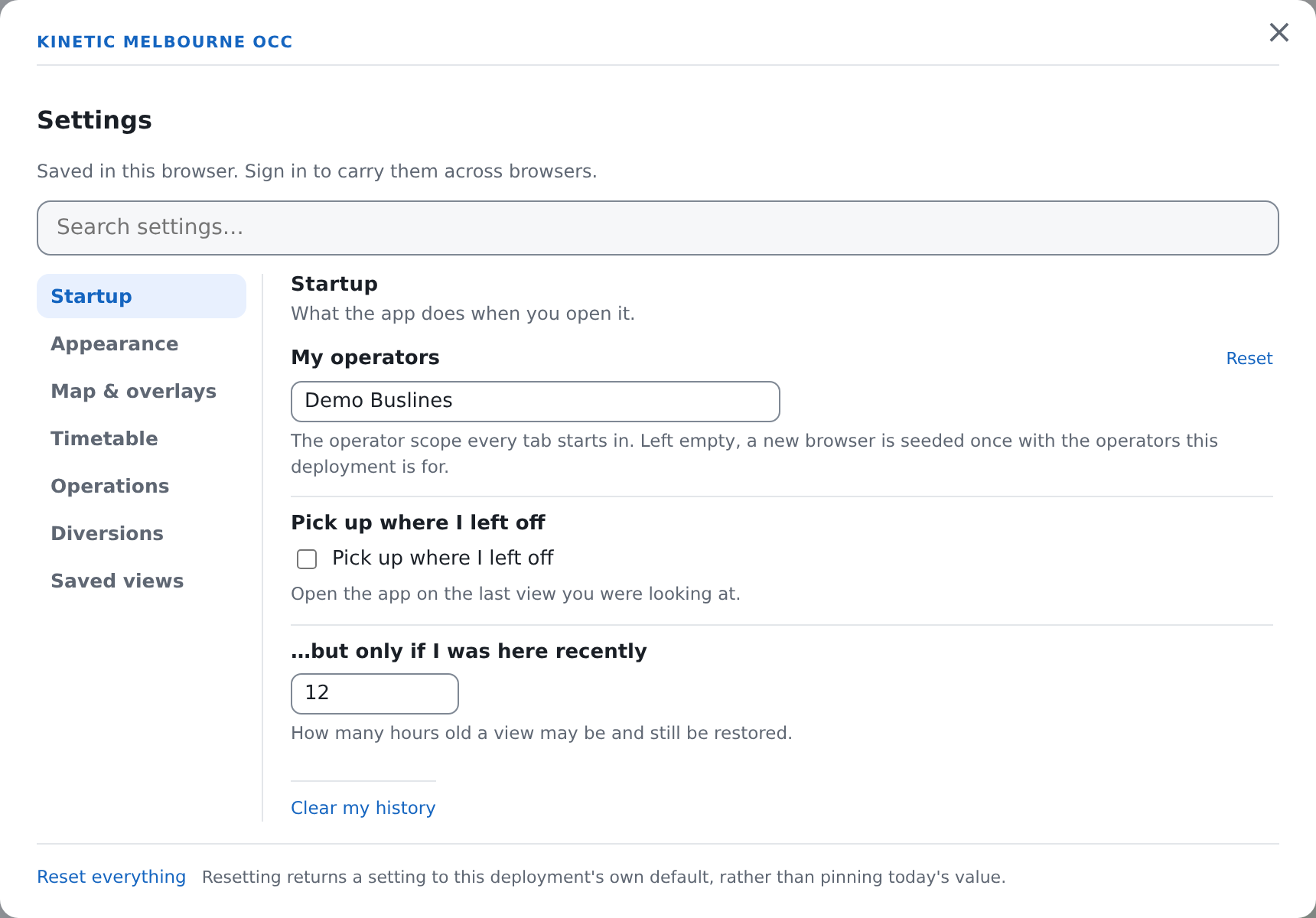
The dialog holds, top to bottom:
- Kinetic Melbourne OCC, then the heading Settings;
- one line saying where your choices are being kept — either "Saved to your account, so they follow you to any browser." or "Saved in this browser. Sign in to carry them across browsers.";
- a search box, Search settings…;
- a rail of sections down the left, and that section's controls beside it;
- along the foot, Reset everything, and the note "Resetting returns a setting to this deployment's own default, rather than pinning today's value."
Searching crosses every section. Type into the box and the rail disappears, because a search that only looked inside the section you happened to be on would find nothing and look broken. It matches the name of a setting and its description, so you can find one by what it does. Nothing matching says so: Nothing matches "…".
The sections
| Section | What is in it |
|---|---|
| Startup | Whether the app picks up where you left off, how old a view may be and still be offered, which operators you start scoped to, and Clear my history |
| Appearance | The colour palette, your own colours, your saved palettes, and the clock format |
| Map & overlays | What the Map Explorer opens with — the basemap, which layers and overlays are drawn, what the bus dots say, the overlays' own filters, the headway watch and alarm lines, and the three traffic radio controls |
| Timetable | Which view and mode the Timetable opens in, and the allocation grouping tolerance |
| Operations | My depot |
| Diversions | Whether the planning map draws no-go areas |
| Saved views | How many views you have pinned |
A section you cannot see is a section this deployment has nothing in. The panel only ever offers a control for something this copy of the app actually has — no live bus feed means no Show live buses, no incidents source means none of the incident filters, no diversion register means no Diversions section at all. It is the same rule as the missing tiles in the Layers panel: this app does not draw switches with nothing behind them.
And if there were nothing at all to set, the ⚙ Settings button itself would not be there.
Where your choices are kept
Two places, and the line at the top of the dialog always says which one you are in.
Signed in: they belong to your account and follow you to any browser you sign in on. Two people at one workstation get their own; signing out and back in as somebody else swaps them, and never mixes them.
Signed out, or on a deployment with no accounts: they are kept in this browser. Clearing this browser's data clears them. Nothing is degraded about this — a control room with one shared machine and no accounts has nothing to attach a preference to, and the app does not pretend otherwise.
Signing in adopts what this browser had, one setting at a time. For each setting your account has never stored, whatever you had set here is carried over — so setting the app up before you had an account is not thrown away. For each setting your account has stored, the account wins, including when the account's answer is a deliberately empty one.
What takes effect when
Immediately, wherever you are. The clock format, the palette, the headway watch and alarm lines, the clearance controls, your operator scope and the three radio controls all reach the running app the moment you change them. You do not have to reload, and you do not have to close the dialog.
Next time the app opens. Which layers and overlays are drawn, the basemap, the Timetable's opening view and mode, and My depot. These say where the app starts, so changing one while you are looking at something does not rearrange the screen under you — and it also means a change to one of them does nothing you can see until you reload.
The same rule governs signing in. Your account's clock format and palette are adopted straight away; your account's opening layers are not, because switching somebody's basemap and turning on three overlays because they signed in is worse than leaving the screen alone.
When a change is not accepted
A refusal is shown, not swallowed. If the app will not take a value, it says so in red under that one control, starting Not saved: and then the reason. The rest of what you changed in the same breath is saved normally — one bad value costs you that setting and nothing else.
The commonest case is a colour that is not legible enough; see Colour and accessibility.
What they do not mean
An empty number box is not zero. Clearing a numeric setting means "I have no opinion — use the default", and the app treats it as a reset rather than storing a zero. That is the most natural way to ask for the default back, and storing 0 for it would be a silent lie: a headway alarm of zero seconds is a very different instruction from no preference at all.
A control showing a value is not necessarily a value you chose. Underneath your own answer sit two more — what the app ships with, and what whoever set this deployment up chose. The way to tell is the small Reset link beside a setting's name: it is only there when you have stored a choice for that setting. No Reset, no stored choice.
The panel is not an audit trail. It shows what is set, not who set it or when. Who did what in this app is a separate record an administrator can see under Recent activity in the Admin Console.
Settings are per person, not per deployment. One account used against two different deployments carries one set of answers between them.
The three radio controls are in Map & overlays whether or not this deployment has a radio. Radio station, Radio volume and Radio playback speed are offered even where no station is set up and the Radio button is therefore not on the map. They are the one place in this panel where a control can be present with nothing behind it; setting them does nothing until a station exists.