
Manual / MAP
Finding a route
- For
- a controller
- Status
- current
- Covers
- the Map Explorer's Routes list, the Operator filter and the Route panel
- Last checked against the app
6f7727e(2026-08-19)
Most of what this tab can tell you starts with a route selected. This page is how you get one on screen, how you narrow it to one direction and one pattern, and what the panel beside it is saying.
What you are looking at
The sidebar opens on Routes. The other half of the pair is Stops, and it has its own page.
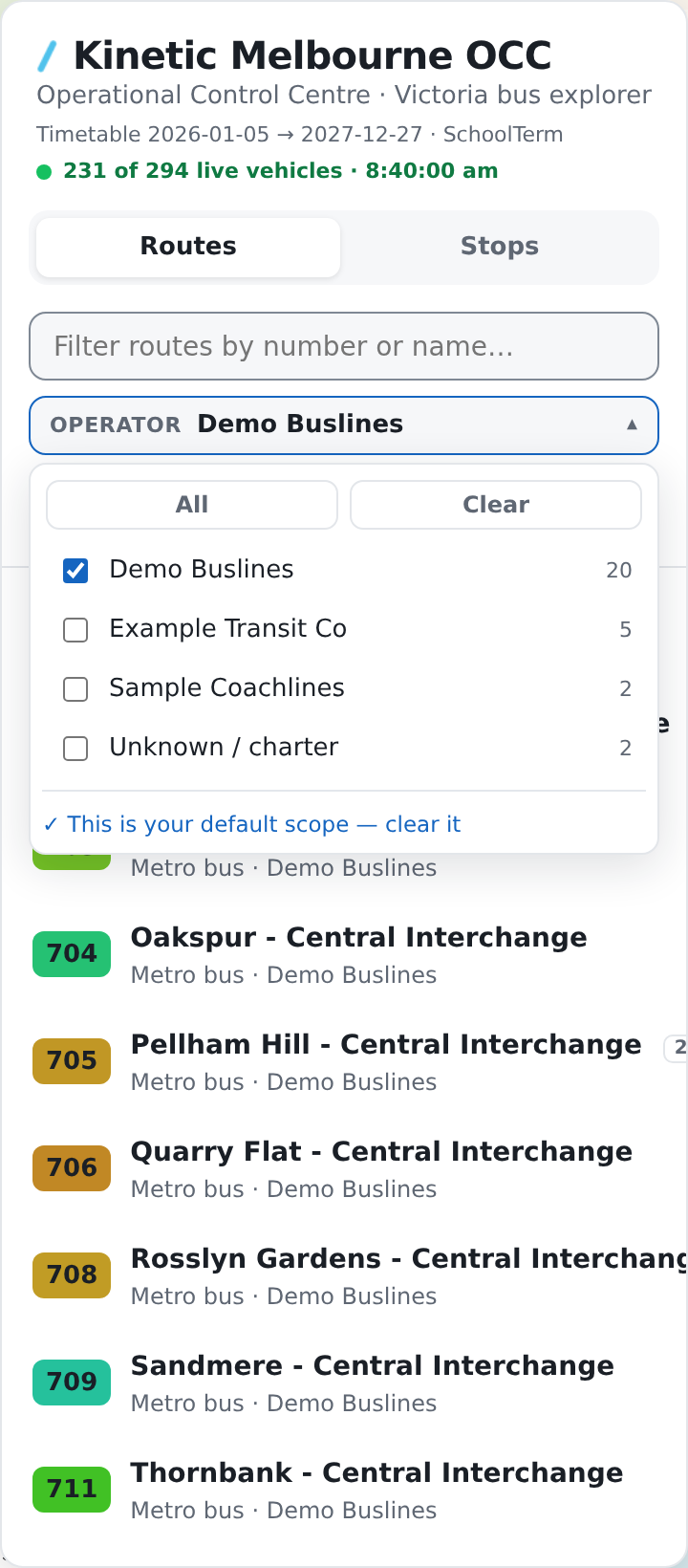
- Filter routes by number or name… — the box at the top. It matches the
number and the name, so
246andElsternwickboth work. - Operator — who runs the route. Closed, it reads All operators, or the one operator's name, or 3 operators. Open it and there is a checkbox per operator with the number of routes each has, an All and a Clear button, and at the foot a link that pins whatever you have picked.
- A count under the filters — 484 routes — of what is in the list right now.
- Any views you have saved, as named links. See Saved views.
- The route list itself. Walk it with the arrow keys.
Each row carries the route number on a badge in that route's own colour, the route's full name, a 3 patterns tag where it has more than one pattern, and underneath: Metro bus or Regional bus, and who operates it.
Clicking a route selects it. Clicking the selected route again clears it.
The same box also finds a bus
Type at least two characters of a fleet number or a plate and any live bus matching it appears in a group above the routes — 2 live buses matching "8071". Clicking one opens its Bus panel and moves the map to it. A bus that is not out right now simply has no match, which is itself the answer. See Following one bus.
What selecting a route does
Four things at once, and they are worth knowing separately because they come apart later:
- the route's line and its stop dots are drawn, at any zoom;
- the camera is framed on the route;
- the live buses are narrowed to that route, split by direction;
- the Route panel opens in the dock on the right.
Two other surfaces follow the selection: the Headway overlay's scope becomes that route and direction, and — while the Incidents overlay is on — closures sitting on that route are marked. The Traffic, Incidents and Clearance overlays otherwise keep showing everything in view; they are about the road, not about your route.
The Route panel
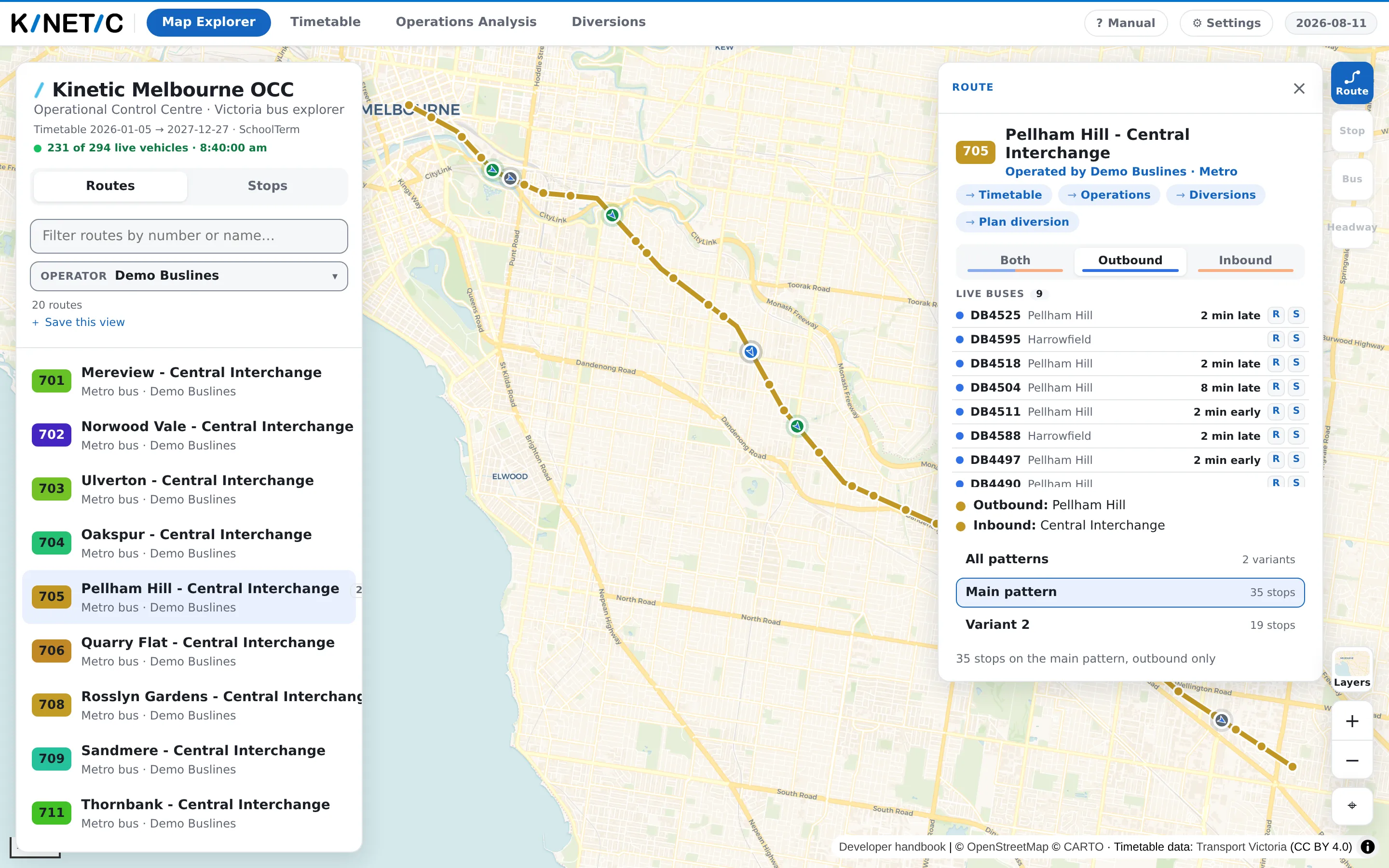
| On screen | What it is |
|---|---|
| The badge and the name | The route number and its full name |
| Operated by … | Who runs it, and the region for a regional route. Absent where the app has no operator recorded |
| A warning line | Present only where the published timetable's shape for this route cannot be trusted. Read it before measuring anything off the line |
| Timetable · Operations · Diversions · Plan diversion | The same route, one click away in another tab. Only the ones this deployment has, and only the ones your account may open |
| Both · Outbound · Inbound | Which direction is drawn. Each button carries the colour that direction's buses are drawn in, so the control and the map agree |
| Live buses | The buses out on this route right now, in order along it, each with how late it is running |
| Outbound: … / Inbound: … | The destination shown on the front of the bus in each direction |
| All patterns · Main pattern · Variant 1 … | The patterns running under this route number, with a stop count each |
| The line at the foot | 62 stops on all patterns · 3 patterns — what the current selection adds up to |
Variants: one number, several patterns
A route number is often several patterns: the short working that turns back early, the school-day run, the express, the one that goes into the depot at the end of the day. The app treats them separately, because the timetable does.
Where a route has more than one, the panel lists All patterns first with the number of variants, then Main pattern, then Variant 1, Variant 2 and so on, each with the number of stops it serves. Pick one and the map draws that pattern alone.
A pattern is not a direction. Most variants exist in both directions, and the Both / Outbound / Inbound buttons are a separate choice that stacks on top of the pattern you picked.
What they do not mean
The route count is not the size of the network. It counts what matches the filter box and the Operator filter as they stand. If someone set an operator scope for you, or you set one last week, the count is of that scope.
Clear and All are not the same button twice. Clear unticks everything, and no ticks at all is how the app says no operator filter — every route, every bus. All ticks every box, which looks the same in the route list but is an explicit choice: the live line under the sidebar heading then reads N of M live vehicles, and the two numbers can differ, because a bus on a route the app has no operator recorded for is only included when Unknown / charter is ticked too.
A blank operator is not "no operator". The published timetable does not say who runs a route; the app carries a separate list beside it, and a route missing from that list shows no operator line at all. It means nobody has recorded it, not that nobody runs it. Routes in that state are gathered in the Operator filter under Unknown / charter.
The line on the map is the published shape, not a survey. Where the app can see that a shape is not usable — it leaves the corridor of its own stops — the panel says so in as many words and tells you the distances are approximate. The line is still drawn, because a planner who searches for a route and finds nothing is worse off than one shown a line with a warning on it. Where the warning is absent, the shape passed the app's checks; it has still not been driven.
The stop count follows your selection. 62 stops on all patterns counts distinct stops across every pattern and both directions. Narrow to one pattern and one direction and the number changes, because the question changed.
Nothing here is about today. The route, its patterns and its stops come from the loaded timetable, which covers a range of dates shown under the sidebar heading. What is running today is the departure board's business, and what is running now is the live buses'.
When it looks wrong
The list is empty. It says which of the two reasons it is: No routes match "…" if the filter box is the cause, and No routes for the operators you have picked if the Operator filter is. Open Operator and press All.
There is no direction toggle. The route runs one way in the loaded timetable, so there is nothing to toggle between. The app draws no control whose only effect is to re-select what is already selected.
There is no pattern list. The route has one pattern.
It says No mapped stops for this selection. The pattern and direction you have combined have no stops in the loaded timetable — usually a variant that runs one way only. Go back to All patterns or Both.
The route is drawn and there are no buses on it. That is a live-feed question, not a route question — see Live buses and what the colours mean.