
Manual / MAP
Following one bus
- For
- a controller
- Status
- current
- Covers
- the live bus hover box, the Bus panel and its Technical details
- Last checked against the app
6f7727e(2026-08-19)
One bus, watched. What the hover box says without committing you to anything, what the panel adds when you click, and how to tell how old any of it is.
The hover box
Point at a dot and a small box appears with three lines, the last two only where there is something to say:
Live · 246 to Elsternwick 4 min late
The route, where it is heading, and how it is running — in the lateness colour, with the actual minutes in words. A bus with no prediction gets no third line at all, which is the same fact its grey dot is reporting. See Live buses and what the colours mean.
Clicking one
Clicking a dot does three things: it rings the bus in orange on the map, it opens the Bus panel in the dock, and it selects that bus's route in the direction it is running, so the rest of its siblings stay drawn around it. Clicking the same bus again closes the panel and releases the route.
To find a particular vehicle rather than one you can see, type its fleet number or plate into the sidebar's Filter routes by number or name… box: matching live buses are listed above the routes, and picking one opens this panel and moves the map to it.
The Bus panel
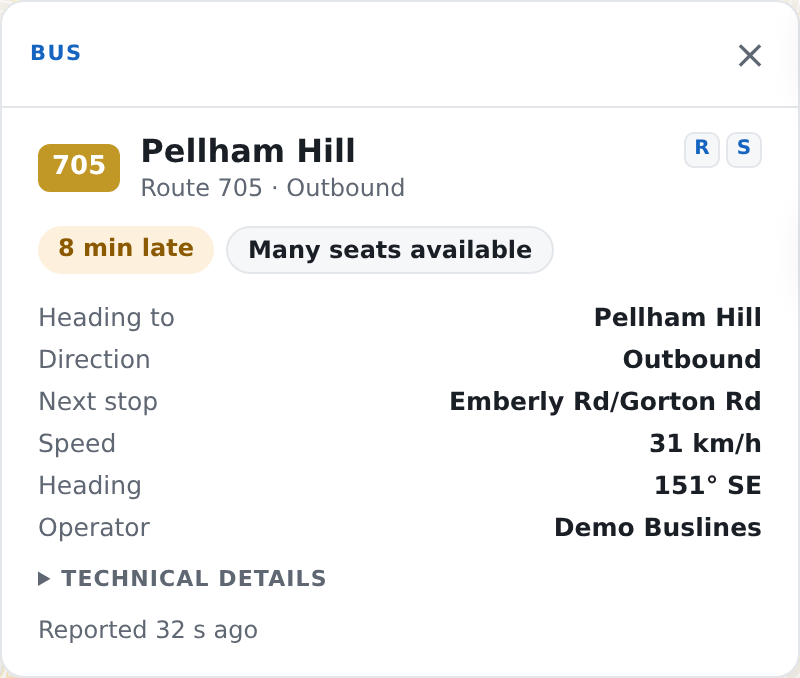
| On screen | What it is |
|---|---|
| The badge, then a heading | The route number, and the destination on the front of the bus |
| Route 246 · Outbound | Its route and direction |
| A coloured pill | How it is running — 4 min late, On time — in the lateness band's colour. Absent where there is no prediction |
| A second pill | Occupancy, in the feed's own words, where the feed gives one |
| A headway line | Only while the Frequency overlay is on and this bus is in a pair: Bunched −4 min off headway behind the bus in front |
| Heading to | The destination |
| Direction | Outbound or inbound |
| Next stop | The stop it is heading for, by name where the app has that route's stops. At … while it is standing at one |
| Speed · Heading | As reported, in km/h and as a compass bearing |
| Occupancy % | As reported |
| Operator | Who runs the route |
| Technical details | Folded away: the vehicle and fleet identifiers, the plate, the journey it is working and when that journey started, its reported status and position |
| Reported 45 s ago | How long since this bus last reported |
| R and S | Where a roster is loaded and your account may read it: the run this bus is working, and the driver's shift |
The panel follows the bus. Every time the feed refreshes, the ring moves and the fields are rewritten, without taking the screen away from whatever you are reading. When the bus stops appearing in the feed, the foot of the panel changes to No longer in the live feed and stays open.
What they do not mean
"Reported 45 s ago" is about this bus, not about the feed. It is the age of this one position report. The clock on the sidebar's live line is a different thing — when the feed as a whole was generated. The app highlights this age once it passes about a minute and a half, because the feed refreshes far more often than that and three missed reports is where the dot stops being where the bus is. Hover the age for the exact time.
A fleet number is not a unique name. The same identifier turns up on more than one vehicle in a single sweep of the feed, so a fleet search can return two buses. The app tells them apart by the journey each one is working, which is why clicking a row and clicking a dot always land on the same bus.
Occupancy is mostly not there. The field is passed through exactly as received and is empty far more often than not on this feed. An empty occupancy is not an empty bus.
Speed and heading are the bus's own report. Nothing checks them against anything. A stationary bus at a terminus and a bus with a faulty sensor produce the same zero.
Next stop is where it is headed, not where it will be on time. It is the stop the feed names next, or the stop it is standing at. It carries no prediction of its own; the pill at the top is the prediction.
The run and shift links are two kinds of match, and the app says which. Hover one and it tells you whether this bus's journey was matched exactly, or matched by route, terminus and start time within the roster's tolerance. The first is a fact; the second is a good match and is stated as one.
No run or shift links is not "no driver". They are drawn only where this deployment holds a roster that covers this route, only for an account allowed to read it, and only on the kind of day the loaded roster was written for. On a public holiday or a school holiday the app draws nothing rather than name a shift from the wrong roster generation with complete confidence.
The ring is a selection, not an alert. It marks the bus you clicked, nothing more.
When it looks wrong
The panel says No longer in the live feed. The bus has stopped appearing: it finished its run, went out of coverage, or the feed dropped it. The last values stay on screen so you can see what it was doing.
The panel is gone. Switching the Buses layer off closes it, because a panel describing something the map is no longer drawing is a dead end. Switch Buses back on and click the bus again.
Everything is there except the pill. No prediction has been published for this bus. That is the grey-dot case, on one bus instead of a screenful.
The button for it has disappeared from the rail. The rail carries a button only while its panel has something in it. Click a bus and it comes back.