
Manual / MAP
Stops and the departure board
- For
- a controller
- Status
- current
- Covers
- the Map Explorer's Stops search and the Stop panel's departure board
- Last checked against the app
6f7727e(2026-08-19)
What the app can tell you about one stop: which routes call there, and what is booked to leave it on a date you choose — with live running laid over today.
Finding a stop
Two ways in.
Click a dot on the map. The network's stop dots stay hidden until the map is zoomed in to about neighbourhood scale — the whole city at once would be a wall of dots — and they fade in as you zoom. A selected route always draws its own stops, at any zoom and whatever the Stops tile in the Layers panel is set to, so a route on screen is always clickable stop by stop. Hovering one of a selected route's stops gives you its position along the route and its name, as #12 Sydney Rd/Bell St.
Or search. The Stops half of the sidebar has Search stops by name or code…, and under it the hint Type at least 2 characters, or click any stop on the map. Results are the stop's name with its stop number underneath. Nothing matching says so: No stops match "…".
The Stop panel
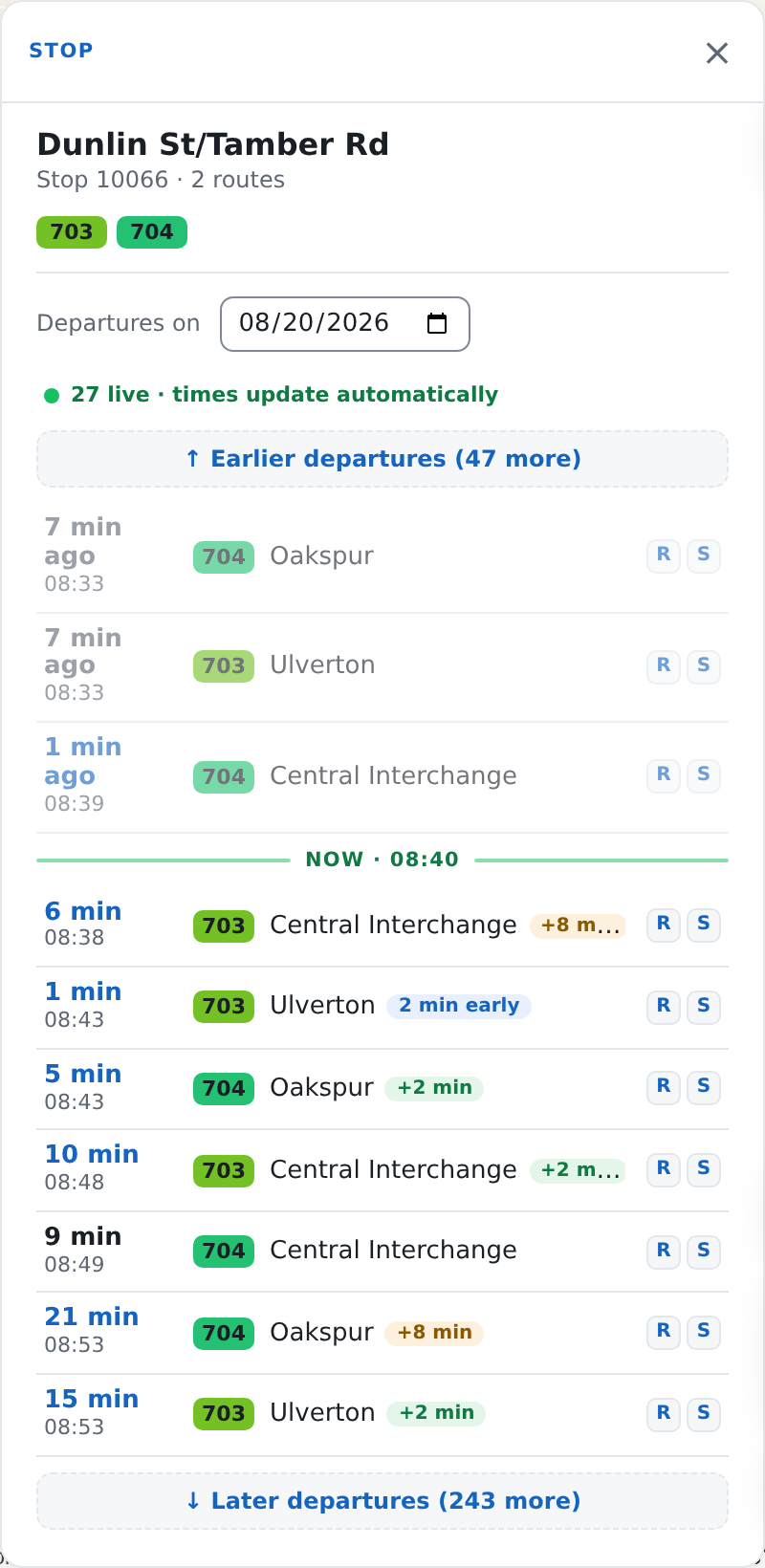
| On screen | What it is |
|---|---|
| The stop's name | As the timetable spells it |
| Stop 19943 · 6 routes | The stop number on the pole, and how many routes call here |
| A row of route badges | Every route through this stop. Press one and the board narrows to it and that route is drawn on the map. Press it again to release |
| Departures on | The date. It will not go outside the dates the loaded timetable covers |
| From now · Gaps | Two readings of the board. Present only while the Frequency overlay is on — see Bus frequency and headway |
| The board | One row per departure |
Today's board opens centred on a NOW · 14:32 line, with a few buses that have just gone above it and the next several below. ↑ Earlier departures and ↓ Later departures reveal ten more each, in the direction you asked for. A board for any other date opens at the start of the day instead, because there is no "now" on it to sit around.
One row
From the left: how long until it goes, then the time it is booked for, then the route badge, the destination, and — on a live row — a coloured chip.
- Due, 5 min, 3 min ago — the wait, counted from the predicted time where there is a prediction and from the booked time where there is not.
- 14:47 — the time in the timetable. This does not move when a bus is running late.
- +4 min, on time, 3 min early — the chip, on rows the live feed has matched. Its colour is the lateness band; the words are the actual minutes.
- Where a run leaves after midnight the time carries a small +1 — 00:35+1 — which means it belongs to the previous day's service. The glossary has service day.
A line at the top of a live board reads 4 live · times update automatically.
The two readings: From now, and Gaps
From now is the ordinary board — a countdown per row.
Gaps replaces that first column with the gap since the previous bus of the same service: +18, and beside it how far that is from the scheduled gap. The first bus of its service in the fetched window reads first, because there is no previous bus and inventing one would be worse. Hovering the cell names the bus it was measured against — 18 min after the 08:12.
The buttons exist only while the Frequency overlay is on, because that is the question they were built for. Everything Gaps shows is decided by the same rule the overlay uses, so a row here and a pair on the map cannot disagree about the same two buses.
What they do not mean
The clock time is what was booked, not what will happen. A bus running eleven minutes down still shows its booked time; the chip beside it and the countdown on the left carry the lateness. Read the two together.
A row with no chip is not a bus running to time. It is a departure the live feed has said nothing about — usually because it is not close enough to now, or because the feed carries no prediction for that run. On a board for any date other than today there are no chips at all, and that is not a fault: predictions only exist for the day that is running.
A cancelled service is not marked on this board. When the live feed cancels a run, the app stops attaching a prediction to it, so the row stays where it was, at its booked time, with no chip on it — which is exactly how a run nobody has predicted looks. The app is told about the cancellation and no screen in it draws that fact today. So the absence of a chip is never confirmation that a bus is coming, and a cancellation still has to reach you the way it always has.
The route chips filter the board, not the stop. Pressing one hides the other routes' departures; it does not change what calls at the stop, and the count in · 6 routes does not move.
A long board can be cut short. Where a stop has more departures on a date than the app fetched, a note under the list says so and suggests picking a route chip or a narrower date. Without that note, the list is everything.
Times after midnight belong to the previous day. A +1 row on Tuesday's
board is a Monday-night bus. Choosing Tuesday's date does not show you Tuesday
morning's small hours — those sit at the bottom of Monday.
When it looks wrong
The board is empty. It says which kind of empty: No scheduled departures on this date (nothing runs from this stop that day — check the date, and whether it is a public holiday) or No departures on that route from this stop today (a route chip is pressed — press it again).
It says No more departures today. You are past the last bus, on today's board. ↑ Earlier departures still works.
The date will not go where you want it. The picker is limited to the dates the loaded timetable covers. That range is printed under the sidebar heading, and extending it means loading a newer timetable — ask whoever administers the deployment.
There are no stop dots at all. Zoom in. See The map looks wrong.