
Manual / Diversions
Diversions
- For
- a controller planning, issuing or filing a route diversion
- Status
- current
- Covers
- the Diversions tab — the register, the planning workspace, the driver bulletin and the documents it produces
- Last checked against the app
6f7727e(2026-08-19)
The Diversions tab is where a diversion is planned before it is needed, signed off, kept in force, and filed afterwards together with the paperwork that went out with it. It is the one part of this app whose output people act on: the driver bulletin printed here is handed to a driver at the wheel.
Seven pages. If you read only one before your first diversion, read Approval, and what it freezes — it is the rule most often mistaken for a fault.
Read this first: none of these figures is contractual
The tab says so itself, under its own heading:
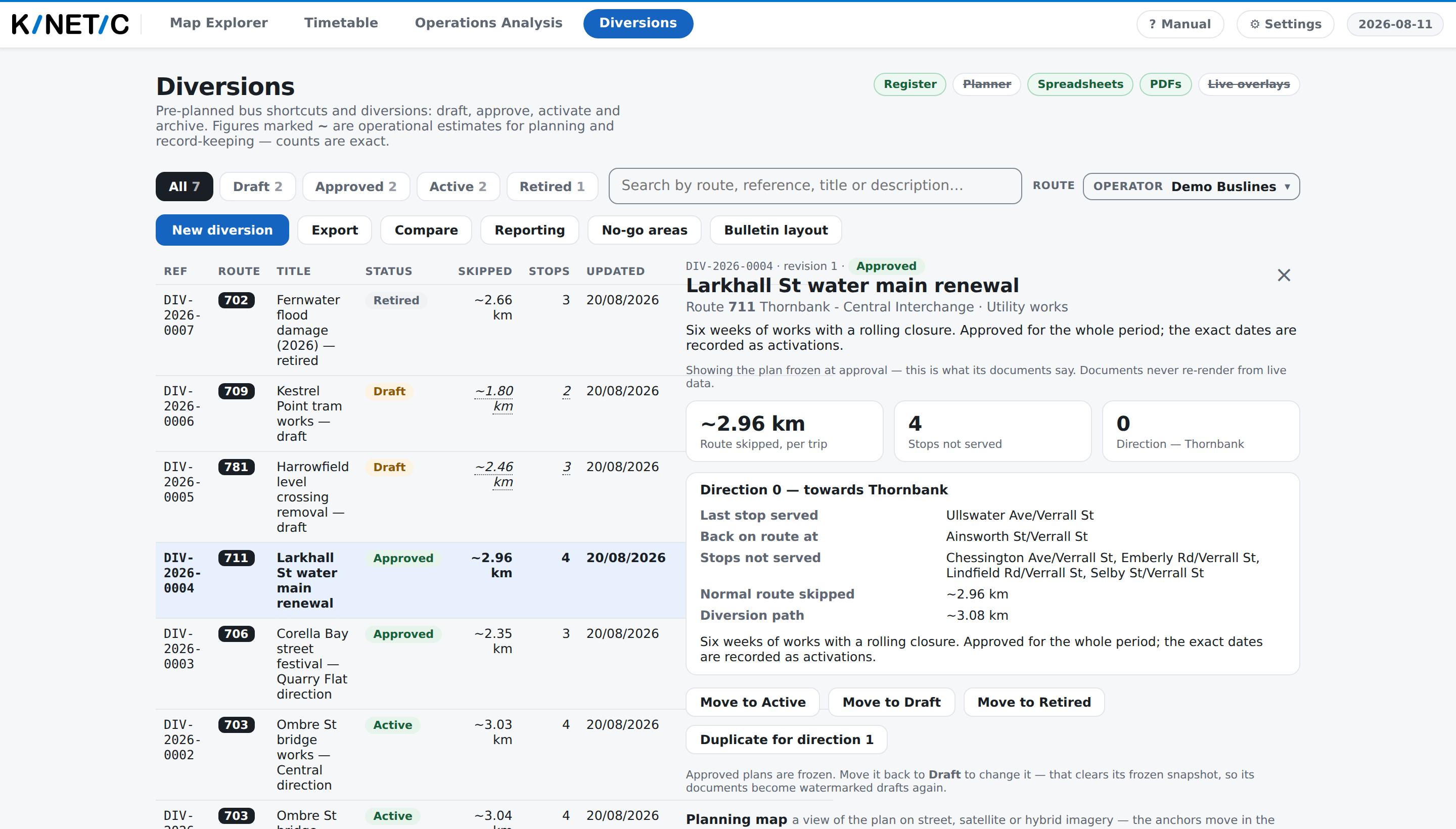
Pre-planned bus shortcuts and diversions: draft, approve, activate and archive. Figures marked ~ are operational estimates for planning and record-keeping — counts are exact.
That sentence is the whole framing, and it is deliberate rather than modest.
- A figure with a leading
~is an estimate. Kilometres skipped, the length of the drawn path, drive times, service-km lost — every one of them is worked out from a plan drawn on a map against a published timetable. They are good enough to plan with and to keep a record with. They are not measured, and they are not reportable figures for a contract. - A figure with no
~is a count, and counts are exact for the plan as drawn: the stops between your two anchors, the trips crossing your window. The app does not hedge those, because it is not unsure of them. - An em dash is neither. Where a page or a column shows — the app has no figure at all. It is never a zero.
A controller who reads an estimate as a measurement will make a decision on it. That is why the mark is on screen, on the printed page, and repeated on every page of this section that shows a number.
The pages here
| Page | What it answers |
|---|---|
| The register | What a diversion record is, how it is named and found, and what its four states mean |
| Planning a diversion | The workspace: anchors, the drawn path, via points, marks on the plan, and no-go areas |
| Starting one from a road incident | Asking which routes a closure hits, seeding a draft from it, and checking later whether the closure has ended |
| Approval, and what it freezes | What stops being editable, what does not, and why a record that could change afterwards would be worthless |
| Activations, and the figures they carry | Service-km lost, why a past window keeps its own numbers, and what this tab does and does not let you record |
| The documents you can produce | The preview, the PDF, the exports, who each is for, and the Bulletin layout panel |
| Driver instructions and the bulletin | Generating the turns, editing them, the markers on the map, and what survives a regeneration |
Two rules the whole tab is built on
Everything else follows from these two, and both are visible in the interface before they are explained anywhere.
One record is one route and one direction. A closure that applies both ways is two records. The return leg is not a mirror of the outbound one — one-way streets and banned turns mean the bus comes back a different way — and a route that only runs one direction was never half of a pair. The Duplicate for direction 1 button (or 0) exists to make the second record cheap to start, not to hide that there are two.
Approval freezes the plan. Approving resolves the diversion against the loaded timetable and keeps that resolution on the record. From then on every document renders from the frozen version, so a bulletin filed in March cannot change meaning because the timetable moved in June. It also means an approved record cannot be edited: send it back to Draft first, which clears the freeze and puts the draft watermark back on its documents.
Who can do what
| You are | What the tab gives you |
|---|---|
| Signed out | The tab wears a padlock. Clicking it asks you to sign in: "Sign in to view the diversion register." |
| viewer | The whole register to read — every record, its plan, its map, its bulletin, its documents and its history. No New diversion button, and each editing panel says so where the controls would have been |
| ops | Everything above, plus drafting, planning, editing, approving, activating and retiring, the No-go areas layer and the Bulletin layout panel |
| admin | The same as ops here. Nothing in this tab is admin-only |
The tab is missing entirely on a deployment that was not set up with the diversion register — see A tab is greyed out.
What this tab does not do
It does not tell anyone. Approving a diversion, activating it or generating its bulletin sends nothing to a depot, a driver or a passenger information system. The paperwork is produced here and goes out by whatever route your control room already uses.
It does not close a road or read a closure back. Where the app knows about a road incident it can suggest which routes it hits, but a diversion is in force because you say it is, not because a feed says so.
It does not change the timetable. A diverted trip is still the published trip. Everything on these screens describes what a bus will not do, measured against a schedule that does not know about the diversion.