
Manual / Operations analysis
What this tab needs before it works
- For
- a controller opening Operations Analysis for the first time, and whoever is asked why it will not open
- Status
- current
- Covers
- the Operations Analysis tab — its header, its seven sections, and the two things that have to be in place first
- Last checked against the app
6f7727e(2026-08-19)
Two things, and they fail differently.
- A roster has to have been loaded on the server. Without one the tab is faded and nobody can open it, including an administrator.
- You need an account with the ops permission. With a roster loaded and the wrong account, the tab is not faded — it wears a padlock and stays clickable, so clicking it can ask you for credentials instead of dead-ending.
Both states are on screen, both are explained by hovering the tab, and both are covered in full at A tab is greyed out. The rest of this page is what the tab is once you are in.
What you are looking at
The heading is Operations Analysis, with the subtitle Kinetic Melbourne driver rosters under it — that being the bus operator whose rosters these are.
Under the heading, seven sections. They work with the keyboard as one control: Left and Right move along them, Home and End jump to the ends, and Enter or Space opens the one you have landed on.
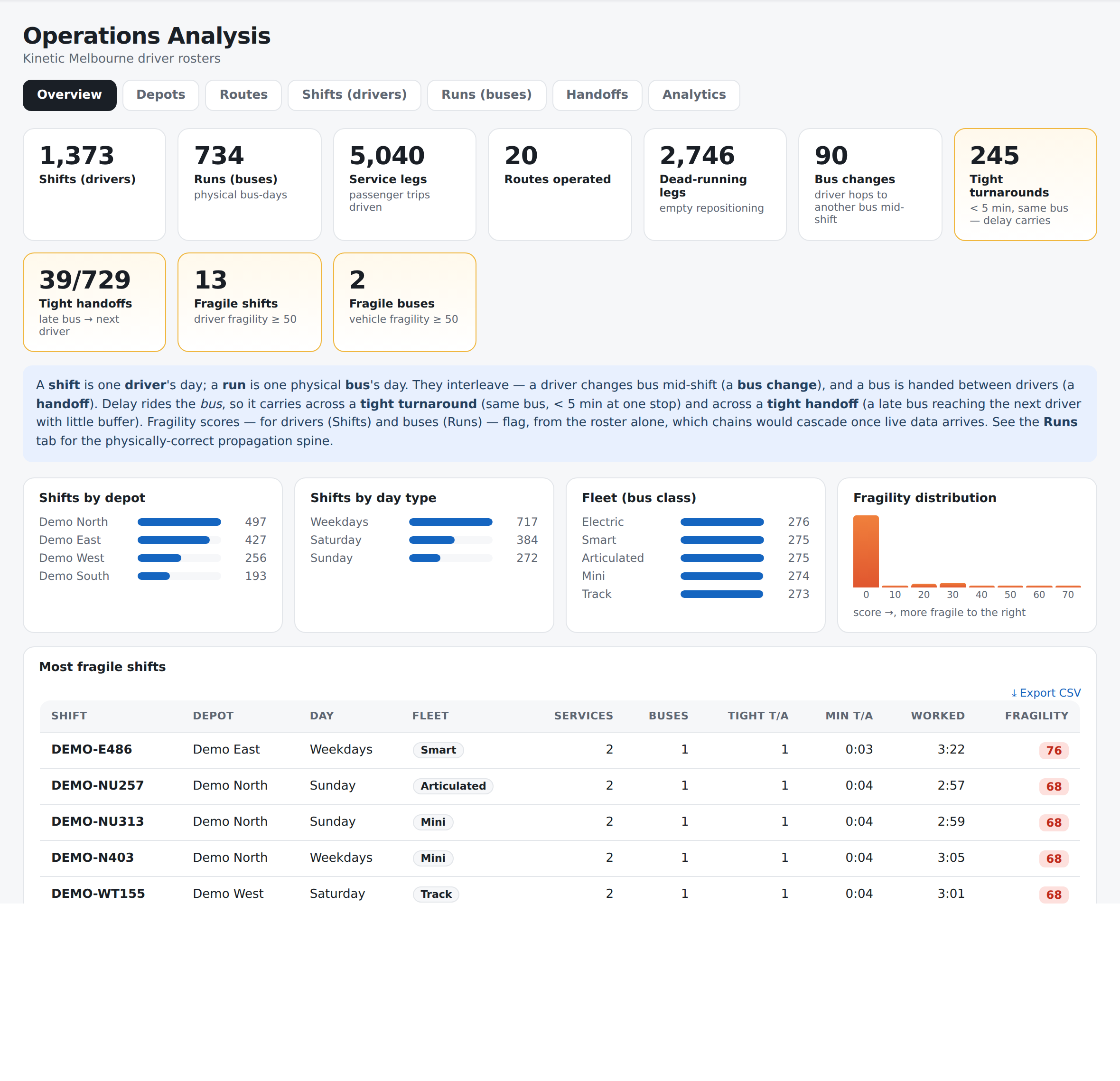
Every figure in this manual's pictures of this tab comes from an invented roster built for the purpose. Every depot in it is named Demo, and every shift number starts DEMO-. Nothing from a real roster appears anywhere in this manual, because it is published without a sign-in.
| Section | What it is for |
|---|---|
| Overview | The headline counts for the whole roster, with breakdowns by depot, day type and fleet |
| Depots | One row per depot: its shifts, its trips, its empty running, its fleet mix and how tight its work is |
| Routes | One row per route: who runs it, out of which depots, with what |
| Shifts (drivers) | One driver's day at a time, ranked by how easily a delay would cascade through it |
| Runs (buses) | One physical bus's day at a time, across however many drivers take it over |
| Handoffs | Every point where a bus passes from one driver to the next |
| Analytics | Seven roster-wide cards — when tightness peaks, where the buffer is, which pairs of routes contaminate each other, duty-time flags — plus the Delay-cascade simulator |
Every table has an ⤓ Export CSV button above it, and what it exports is the table as you are looking at it: your filters, your sort order, your formatting. Every section can be linked to, and so can an open shift or bus.
Clicking a row in Shifts (drivers), Runs (buses), Handoffs or the duty-compliance table opens a drawer down the side with that shift's or that bus's whole day in it. Close it with the × in its corner, by clicking the dimmed page behind it, or with Escape.
What it is built from
One source: the driver roster. Not the published timetable, not the live bus feed. The roster is one page per driver shift — sign-on to sign-off, every service leg, every empty repositioning leg, every break and every changeover in between, with the timepoints along each one — and the app reads all of it and then works out the other half: which physical bus each leg belongs to, and therefore where a bus passes between drivers.
That second half is the reason this tab exists, and it is the thing no roster page can show you: a roster is organised by driver, and delay travels with the bus.
What they do not mean
Nothing here is live, and nothing here is observed. Every count on this tab describes the plan as rostered. It does not know what happened this morning, it does not update as the day goes on, and refreshing it changes nothing until a newer roster is loaded on the server.
There is no date. The tab is organised by day type — the roster's own categories, such as Weekdays, Friday, Saturday and Sunday — not by calendar date. "Saturday" here means the Saturday roster, every Saturday it applies to.
The tab knows no driver names. The roster it reads is anonymous by design: the columns headed From driver and To driver in Handoffs carry the shift number, not a person. Nothing on this tab identifies who worked anything, and nothing on it should be read as a measure of any individual.
A loaded roster is not necessarily this week's roster. A roster covers a generation of days — a school term, say. Elsewhere in the app, where a departure would otherwise be labelled with the shift working it, the app draws nothing at all on a date the loaded roster does not apply to, rather than naming a duty with confidence it has not earned.
The roster covers this operator's own routes. Most of the network in the Map Explorer has no roster behind it, and that is not a gap in the data — it is somebody else's work.
A tab you can open is not a tab that answers everything. The Shifts (drivers) and Runs (buses) lists show the first 300 rows and say so underneath — "Showing the first 300 shifts (of about 1,700). Narrow with the filters above to reach the rest…". The export holds the same rows the table does, so a capped table exports capped.
Your opening depot
⚙ Settings → Operations → My depot sets the depot the tab opens scoped to, in both Shifts (drivers) and Runs (buses). Clear the filter on screen to see everything again; the setting only decides where you start.
It is a plain text box and it is not checked against the roster's list of depots, because that list is not loaded until you open the tab. A name that matches nothing gives you an empty table you can clear, which is easier to notice than a setting that was quietly ignored.
A link wins over it. Somebody else's Operations link shows you their view, not your depot.