
Manual / Overlays
Turning overlays on and off
- For
- a controller
- Status
- current
- Covers
- the Layers panel, its Overlays group, and the button at its foot
- Last checked against the app
6f7727e(2026-08-19)
Where the switches are, how to make the map open the way you want it, and how to read an overlay that is not there at all.
What you are looking at
The Layers button is in the map's own control column, bottom right. It opens a panel with three groups:
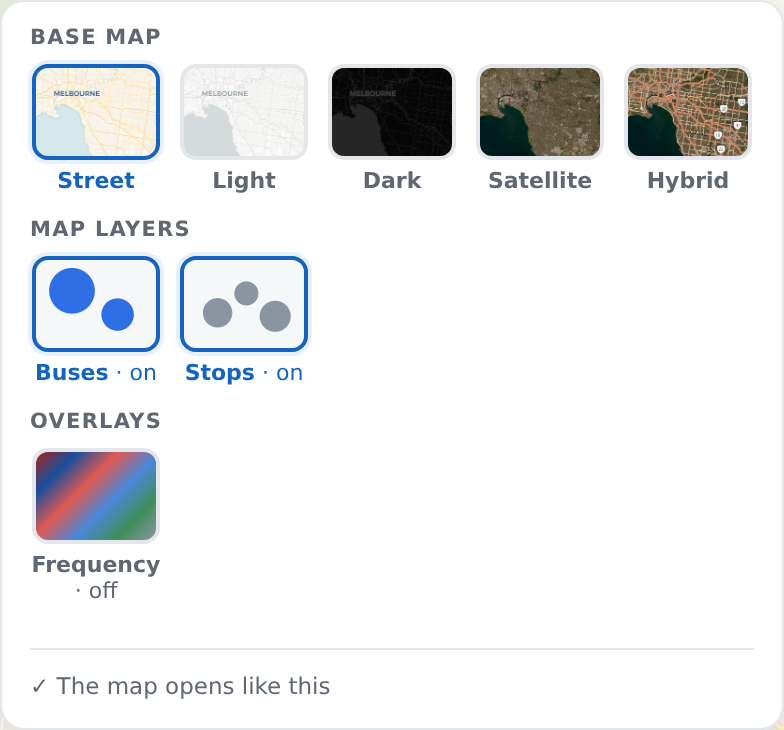
| Group | What is in it | How it starts |
|---|---|---|
| Base map | Street, Light, Dark, and Satellite and Hybrid where the deployment has imagery | Street |
| Map layers | Buses and Stops | Both on — they are what the map is for |
| Overlays | Traffic, Incidents, Clearance, Frequency | All off |
The Map layers and Overlays tiles carry a preview painted from the very colours that layer draws with, so a swatch here cannot come to mean something the map does not; the Base map tiles show a real piece of that map, of wherever your camera is.
Switching an overlay on adds its own block to the bar along the bottom centre of the map — its key, how old what you are seeing is, and its own controls. Switching it off takes the block away again. That bar is where an overlay explains itself.
Escape closes the panel, and so does clicking anywhere else. The Radio panel and this one share a corner and are never open at once.
Making the map open the way you want
At the foot of the panel is a button that reads Open the map like this next time. It saves the background you are on and which layers are switched on, and after that reads ✓ The map opens like this until you change something.
Signed in, that follows your account to any browser you sign in on. On a deployment with no accounts, or while you are signed out, it is kept in this browser only — the button's own tooltip says which.
The same choices are in ⚙ Settings under Map & overlays, as Show live buses, Show stops, Open with the traffic overlay on and so on. Two doors, one set of answers.
This is a different thing from a saved view. These say where you start; a saved view is a named place to go. Most people want both.
Switching a layer off does not switch anything off
Turning Buses off hides the dots. The live feed keeps arriving, the count on the sidebar's live line stays honest, and switching back is instant. The same is true of Stops: the network's stop dots go, and a selected route keeps drawing its own.
Two things do follow the switch, because a panel about something the map is no longer drawing is a dead end: turning Buses off closes an open Bus panel, and turning Stops off closes an open Stop panel.
Why an overlay is sometimes not there at all
This is the part worth learning, because the honest answer is almost never "it is broken".
Every optional thing in this app follows one rule: the surface activates itself where the deployment has what it needs, and draws nothing at all where it does not. There are no dead switches. So a tile you have read about and cannot find means the thing behind it was never given to this deployment.
| What you see | What it means |
|---|---|
| One overlay's tile is missing | This deployment has no source for that overlay |
| The whole Overlays group is missing | None of them is available here |
| The Buses tile is missing, and there is no live line | No live bus feed |
| The Frequency tile is missing | No running predictions. The Colour live buses by setting is absent for the same reason, and the bus dots stay blue |
| Satellite and Hybrid are missing | No imagery configured |
Each overlay needs something different, and none of it is anything you can turn on from the app:
- Traffic needs a traffic source, which is a licensing decision somebody has to take — see Live congestion;
- Incidents needs access to the road authority's incident feeds;
- Frequency needs the live running predictions;
- Clearance needs the road structure data to have been built for this deployment.
It is not about your account. No role hides an overlay tile: what one person sees in this panel, everybody on that deployment sees. If a tile is missing for you it is missing for the shift supervisor too.
So the thing to do is ask whoever runs this deployment, and to ask for the source by the name the panel gives it — "we have no Clearance tile" is a question somebody can act on. It is a setup question, not a fault report. The one exception worth checking first: the app has to be reloaded after somebody adds a source, so if you have had this tab open since yesterday, reload before you ask.
What travels, and what does not
Copy the address out of the bar, or save a view, and Traffic, Incidents and Frequency travel with it — along with the incident filters, the basemap, and Buses or Stops if you had switched one off.
Clearance does not travel. It is a standing reference layer rather than something you were looking at, so it is not in a link and not in a saved view.
Neither do the settings that say how you read an overlay: your headway Watch and Alarm lines, the traffic overlay's Only congested roads box and the incidents' Include tow trucks and retired records box are yours, and stay with you rather than with the view.
When it looks wrong
The tile is on and the map shows nothing. The overlay has nothing to draw where you are looking, or its own filters are hiding it. Its block on the bottom bar carries the age of what it has and the filters that could be hiding things — that is the first place to look, before anything else.
The tile is off and you did not switch it off. Overlays start off every time, unless you have pinned them with Open the map like this next time.
The panel's foot button is greyed out. The map already opens like this. Nothing to save.
A tile appeared that was not there yesterday. Somebody added the source. That is the same rule working the other way round.